Last week, I ran a survey asking my students for feedback on our financial modelling sessions. One of the questions was about what additional Excel skills they’d like to improve. Most of them said they want to learn how to build macros.
I thought about what I could advise them. My first idea was to suggest a series of online courses and videos on how to build macros from A to Z. But then I told myself, these are busy individuals, and they don’t really have the time to enjoy learning a new language. And to be honest, if I were to recommend a new language, I’d say Mandarin, not VBA.
So here’s my recommendation:
If you have the time and the passion, then yes, go and learn VBA properly. Take a structured course that does a deep dive, step by step. Once you learn it, you’ll be able to get creative and build from scratch.
If you’re a financial modeller like me and you consider yourself more of a macro user than a VBA developer, then the first step is to understand where you actually need to apply macros and automation in your models.
Here are some of the typical use cases for macros in project finance models:
1. Resolving circular references
If you have a circular reference that isn’t an error but a natural result of the model logic, you need to resolve the iterative calculation unless it’s a quick one-off calculation that you’ll throw away and never send to anyone.
The conventional method is to use a simple copy and paste macro with a loop. It’s only two lines of code, but the issue is that the number of these macros grows as your model gets more complex.
Typical circular reference examples include:
• Financing fees in the Sources and Uses
• Interest and corporate income tax in the P&L
• DSRA funding (depending of position in cashflow waterfall)
• Cash sweep mechanisms
• Capitalized interest during construction
• Carried interest or performance fees tied to cash flows
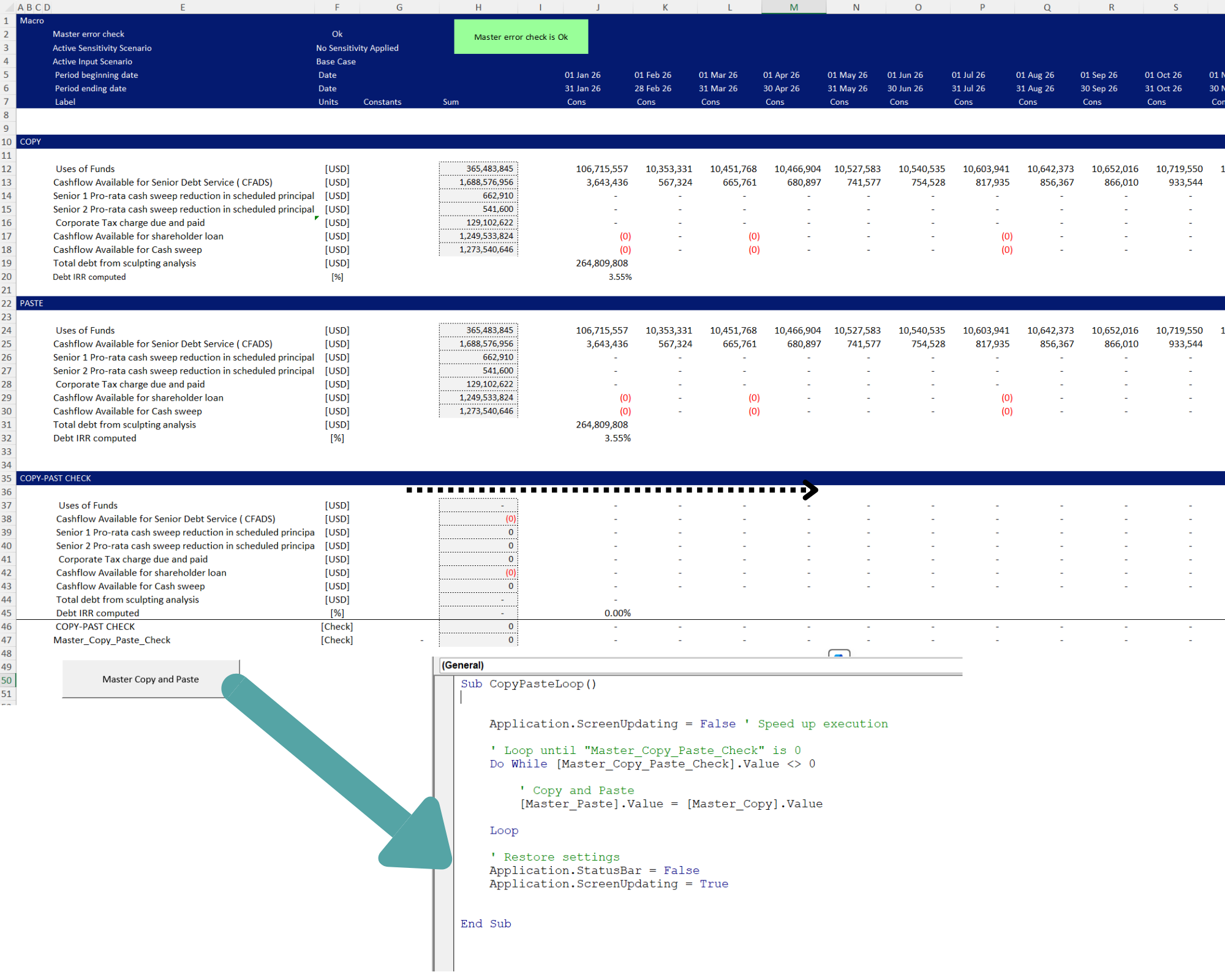
The more advanced and effective method is to get rid of the copy and paste button and apply the User Defined Function (Parallel model technique) developed by Professor Edward Bodmer.
2. Setting the tariff
In a tariff setting model, you may want a macro that automates the goal-seeking process for you. Especially if you’re already using copy and paste macros, you’ll want to include goal seek in the automation. A typical example is during PPA negotiations, where you’re setting a tariff based on a target equity IRR. That can easily be automated with a goal seek macro.
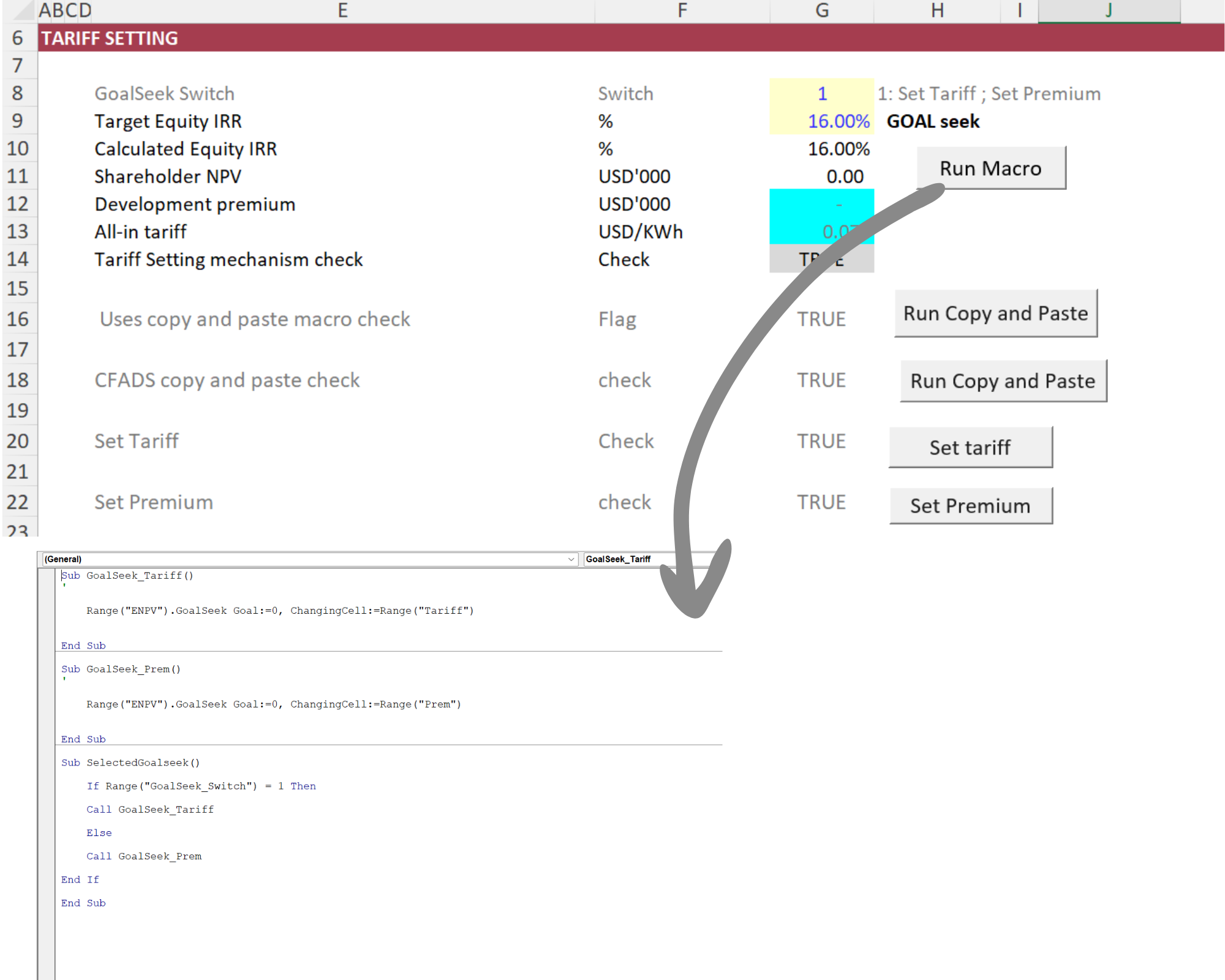
For more advanced dynamic Goal Seek Macro check Professor Edward Bodmer’s technique:
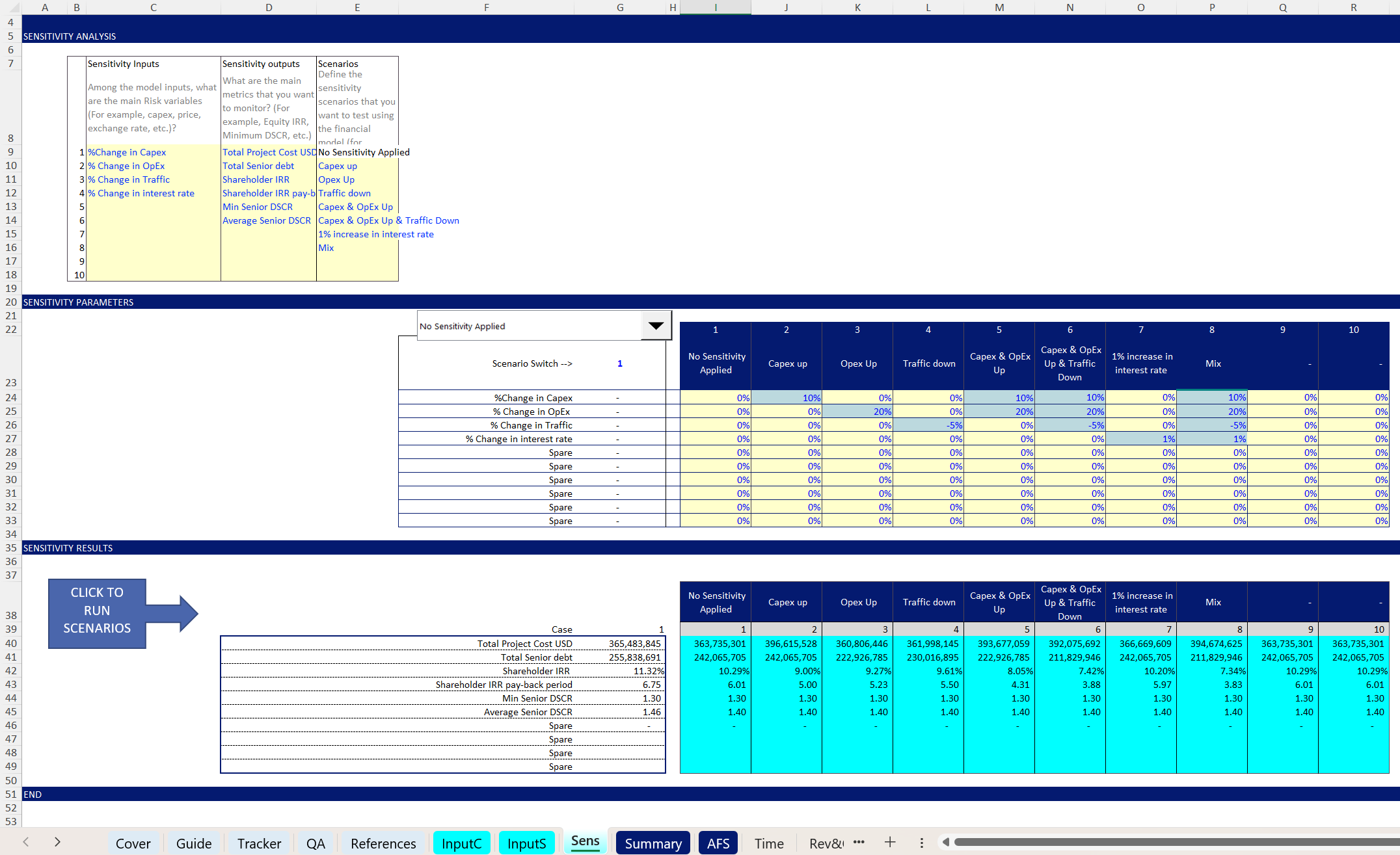
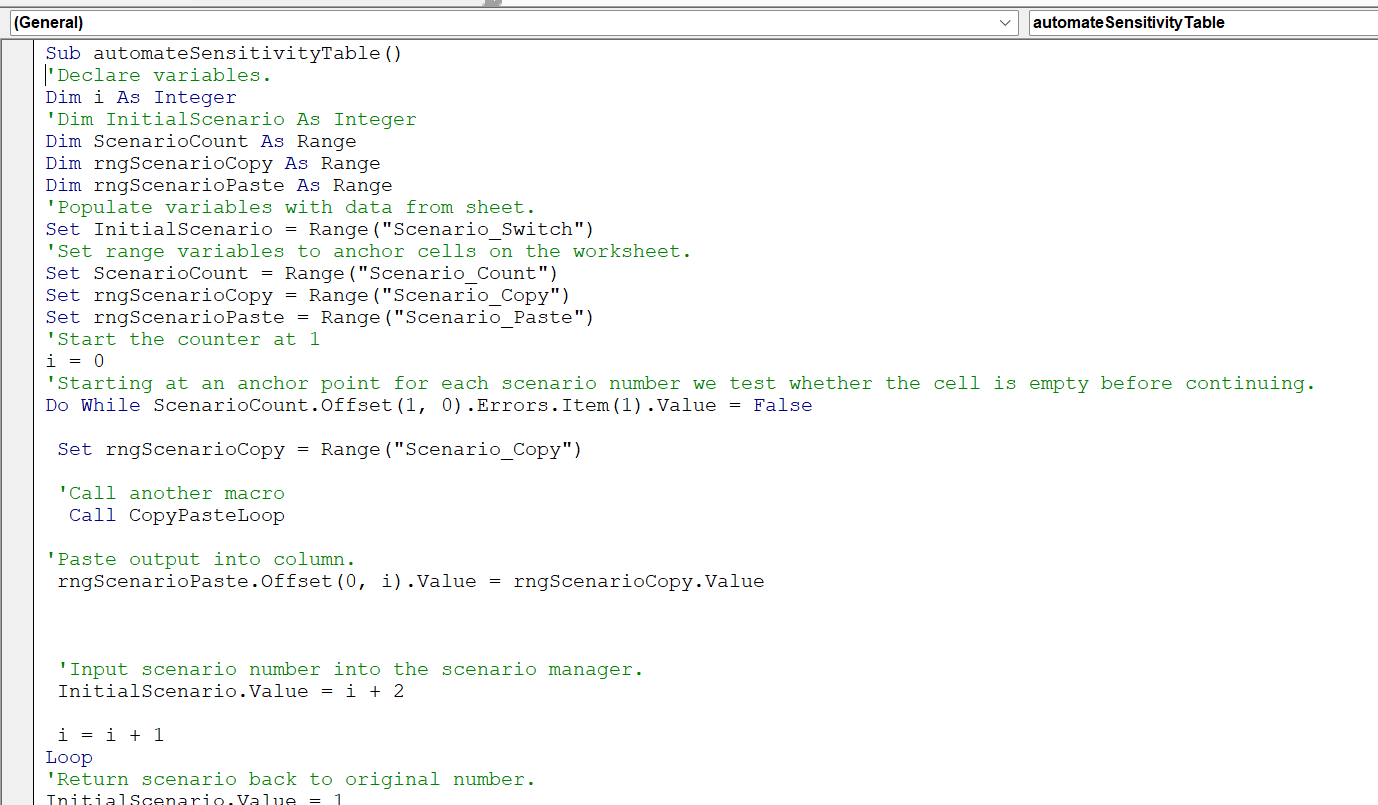
3. Sensitivity and scenario analysis analysis
If your model already uses macros for copy and paste or goal seek, then you need an additional macro that loops through your sensitivity cases while running the others.
4. Automatic formatting of your spreadsheets
There are already a lot of Excel add-ins available to help with formatting and auditing your models. The one I personally use is the Generic Macro by Professor Edward Bodmer. It’s free to download, and with just a couple of clicks, you can apply consistent formatting, add table of content, find hard-coded inputs, access several build-in user defined functions, useful shortcuts like copy to the right and much more.
What I really like about the Generic Macro tool is that you also have access to the code. That means you can go in, see how it works, and even change or customize it to fit your own workflow.
For everything else, you can use any AI. You’ll see that very quickly you’ll be able to read and understand macros. You’ll get to a point where you can spot the errors AI makes and ask it to fix them. And eventually, you’ll just use the AI-generated draft and make the changes yourself.
And that’s really all you need to be able to say on your CV that you know VBA for financial modeling.